Create stylish Discord names with symbols, cool fonts, and copy-paste nickname ideas. Find aesthetic, funny, edgy, and unique Discord names for every style.
Best CODM font changer & aesthetic name ➜ Cute Nicknames
Nickname Generator
How to Use the Discord Nickname Generator
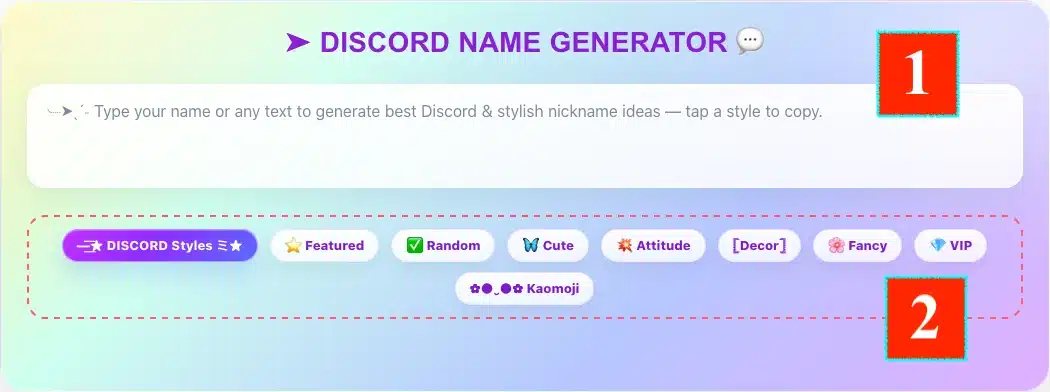
Using the Discord Name Generator on FontSt is simple. Start by typing your name, gamer tag, or any short text into the large input box at the top. As you type, the generator shows styled Discord nickname ideas that are ready to copy and paste.
Below the input area, you can explore different style tabs to shape your name the way you want:
Discord Styles for general nickname styles
Featured for popular picks
Random for instant mixed ideas
Cute for soft and adorable names
Attitude for bold and confident styles
[Decor] for extra decorative looks
Fancy for elegant and stylish names
VIP for premium-looking nickname styles
Kaomoji for names with expressive Japanese-style text faces
How to Use the Discord Nickname Generator
A good way to use the tool is to begin with a simple base name, then test a few tabs until you find a version that feels right for your Discord profile. Short names usually look cleaner in chats, member lists, and voice channels.
For example, if you type Shadow, you might turn it into styles like:
𝕾𝖍𝖆𝖉𝖔𝖜
𝓢𝓱𝓪𝓭𝓸𝔀
✦ Shadow
Shadow ツ
♛ Shadow
Shadow ૮₍ ˶•⤙•˶ ₎ა
The best Discord names are usually easy to read, easy to remember, and still unique enough to stand out. Instead of over-decorating every letter, it often looks better to choose one clean font style and add a small symbol or cute finishing touch.
If you want quick ideas without building everything yourself, open the Random tab below the input box. This tab is made for users who want instant Discord nickname inspiration with different moods and styles.
Here is the easiest way to use it:
Type your name or any word into the text box
Click or open the Random tab
Browse the automatically mixed nickname styles
Copy the version you like best
Test it on Discord as a display name or server nickname
The Random tab is useful because it does not lock you into one theme. Instead, it gives you a mix of cool, playful, stylish, decorative, and personality-based ideas. This is especially helpful if you know the vibe you want, but you are not sure which style tab fits best yet.
For example, a simple input like Nova could give you ideas such as:
𝓝𝓸𝓿𝓪
✦ Nova
Nova ♡
꧁Nova꧂
𝖭𝗈𝗏𝖺
Nova ૮₍ ˃ ⤙ ˂ ₎ა
A smart way to use the Random tab is to treat it as an idea finder first. Once you see a style you like, you can move to other tabs like Cute, Attitude, Fancy, or Kaomoji to refine your final Discord name even more.
If you want a clean and modern result, keep the style minimal. If you want a more eye-catching nickname, choose a random style with one decorative symbol or a soft kaomoji finish instead of making the whole name too heavy.
When people say “Discord names,” they usually mean display names or server nicknames, not the unique username. That matters because Discord’s naming rules are different for each one. Usernames are stricter: they must be 2 to 32 characters, stay lowercase, and only allow letters, numbers, underscores and periods. They also cannot contain consecutive periods, and every username must be unique.
Display names are much more flexible, which is why FontSt-style names fit better there. Discord says display names can include special characters, spaces, emojis, uppercase and lowercase letters, and non-Latin characters, and they can be 1 to 32 characters long. Discord also says names must follow its Community Guidelines, so they cannot impersonate Discord, staff, system messages, other people or organizations, and they cannot include hateful or sexually explicit language.
For this reason, most stylish names from a generator are best used as:
a display name
a server nickname
a friend nickname
or a themed profile identity
Examples that work better as display names or server nicknames than as usernames:
𝓛𝓾𝓷𝓪 𝓥𝓸𝔁
★ GhostSignal
Peachy Mint ✿
ツ NightByte
૮₍ ˶•⤙•˶ ₎ა Mochi.exe
If you want maximum compatibility, keep your Discord username plain and use your display name or server nickname for the stylish version.
If you want to change your nickname inside a server, Discord requires the Change Nickname permission for that server. On desktop or browser, you can right-click your own name in the member list or right-click your name on one of your messages, then choose Edit per-server profile and enter a new nickname. Discord also supports the /nick slash command for changing your nickname in a server. If the server owner or admins have not given your role permission, those options will not work.
If you want to change your main Discord identity outside a specific server, that is different. Your global username can be changed from User Settings > My Account, while display names are handled separately and are what people mostly see across Discord. Server nicknames can still override your display name inside individual servers.
A practical setup is:
keep your username simple
use your display name for your main style
use server nicknames for gaming clans, friend groups, or themed communities
That gives you more flexibility without locking everything into one name.
There are two different meanings here. The first is friend nicknames. Discord lets you set a private friend nickname for someone by right-clicking their profile avatar and choosing Add Friend Nickname. This is mainly for your own organization and does not change their real account identity for everyone else. Discord also states that friend nicknames and server nicknames take priority over display names where they are set.
The second is changing someone’s server nickname inside a Discord server. For that, you need the Manage Nickname permission. On desktop or browser, you can right-click that member in the member list or on one of their messages and edit their per-server profile. Discord’s permissions guide also notes that members cannot change the nicknames of users with equal or higher roles, even if they have the permission enabled.
So in practice:
Friend nickname = personal label, mostly for your own view
Server nickname = name shown for that person inside one server
No permission = you cannot change it
Higher or equal role above you = you usually cannot change it