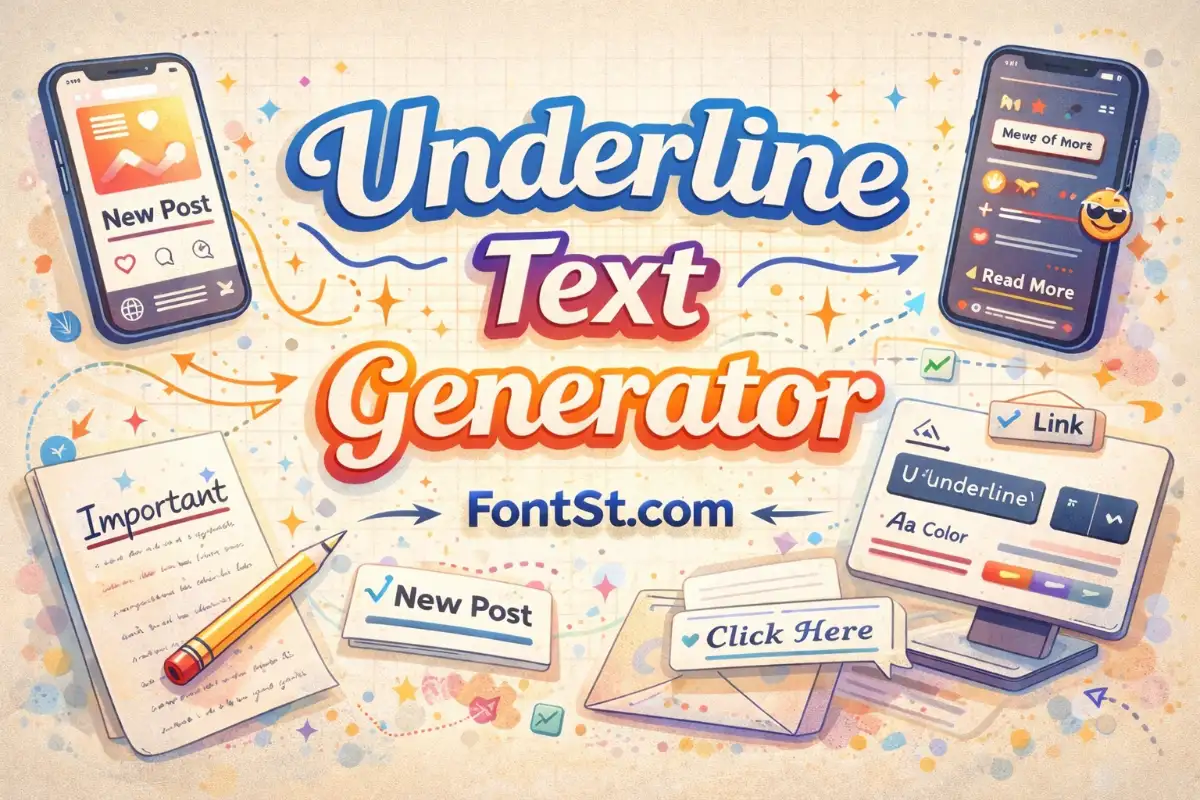
Want your message to stand out without looking messy? This WhatsApp Underline Text Generator helps you create stylish underlined text you can copy and paste into chats, bios, names, and short status lines.
Many people look for a way to add an underline in WhatsApp because it makes short text feel clearer, stronger, or more eye-catching. It works well for names, mini headings, reminders, short quotes, and aesthetic status lines.
The important thing to know is this: in regular WhatsApp messages, underline is not listed as one of the built-in chat formatting options in WhatsApp’s official message-formatting help. WhatsApp’s help for channel updates does mention underline, so the safest reading is that underline is available in channel update formatting, but not as a normal built-in chat style for standard messages.
That is why most users who want underline on WhatsApp use a copy-and-paste text generator instead of relying on native chat formatting.
How to Underline in WhatsApp
If you want underlined text in a normal WhatsApp chat, the easiest method is to use a generator like FontSt.
Here is the simple workflow:
Type your text into the generator
Choose an underline style you like
Copy the result
Open WhatsApp
Paste it into your chat, bio, profile name, or status text
This approach is popular because it is fast, simple, and does not depend on WhatsApp having a native underline button for standard chats.
If you only need built-in formatting, WhatsApp officially supports other message styles such as bold, italic, strikethrough, monospace, inline code, lists, quote, and code blocks in messages. Underline is not included on that official chat-formatting list.
How to underline text in Whatsapp Android & iOS.
How to Underline Text in WhatsApp on Android
On Android, the easiest way is still copy and paste.
Use this method:
Open the FontSt underline text generator
Type the word, phrase, or sentence you want
Tap the underline version you like
Copy it
Paste it into WhatsApp
This works best for:
highlighted words in chat
stylish contact or profile text
short status lines
simple decorative captions
For Android users, this is usually better than looking for a hidden formatting option inside WhatsApp, because WhatsApp’s official chat formatting guide does not include underline for normal messages.
A good tip is to keep underlined text short. A single word, a name, or a short phrase usually looks much cleaner than a full paragraph.
This is the easiest option for iOS users who want an underline look in chats, profile text, or status content.
For normal WhatsApp messages, the official formatting options are still focused on things like bold, italic, strikethrough, and monospace rather than underline. So for iPhone too, a copy-and-paste underline text generator is the practical solution for chat use.
If one underline style feels too busy, choose a cleaner version. Underlined text should add emphasis, not make the message harder to read.
If your goal is to underline text inside a WhatsApp message or chat, there are two things to keep in mind.
First, native chat formatting in WhatsApp does not officially list underline as a standard message style. Second, that is exactly why underline generators are useful: they give you a visual underline effect you can copy and paste into chats.
This makes underlined text useful for:
drawing attention to one key word
separating a short heading from the rest of a message
creating a stylish chat intro
making status text look more personal
giving profile text a sharper visual style
For everyday chatting, underline works best when you use it lightly. One underlined phrase can look polished. Too much underlined text in every line can feel noisy.
Underline on WhatsApp and WhatsApp Bold and Underline
A lot of users search for WhatsApp bold and underline because they want text that feels stronger than plain underline alone.
For standard message formatting, WhatsApp’s official help includes bold and several other styles for chats, but not underline. That means true built-in “bold and underline” as a regular WhatsApp chat formatting combo is not something WhatsApp officially documents for normal messages.
If you want a bold-and-underlined look, the better route is to use a text generator that creates a styled version you can copy and paste. That gives you more visual variety than the native chat shortcuts.
The best use cases for this style are:
short titles
display names
announcement-style status text
captions that need extra emphasis
For longer messages, cleaner text usually performs better. For short standout text, bold-and-underline style can look great.
If you want underlined text to look better on WhatsApp, a few small tricks make a big difference:
Keep it short Underline works best on names, quotes, or one-line messages
Use it for emphasis, not everything One highlighted line is stronger than five underlined lines
Pair it with clean symbols Minimal hearts, stars, or sparkles can make the text feel more polished
Test the look before posting Some underline styles feel elegant, while others feel too heavy
Choose readable styles first A stylish result should still be easy to understand at a glance
If you want a subtle style, pick a light underline effect. If you want a more decorative feel, try a fancier underline version for bios or status text.
How to Use FontSt’s Underline Text Generator for WhatsApp
FontSt keeps it simple.
Type your text into the tool
Browse the underline text styles
Tap to copy
Paste into WhatsApp
That is all you need.
This is especially useful when you want something that looks more custom than plain chat formatting. It saves time, gives you more style options, and works well for short personal text.
Good places to use it include:
WhatsApp chat intros
profile names
status text
aesthetic one-liners
short reminders
decorative captions
If your goal is a clean result, start with the simplest underline style first.
Can you underline text in WhatsApp natively? For regular messages, WhatsApp’s official formatting help does not list underline as a built-in chat formatting option. WhatsApp’s help for channel updates does mention underline, so underline appears to be supported there, but not as a standard chat format for normal messages.
How do I underline in WhatsApp chat? The easiest way is to use an underline text generator like FontSt, copy the styled text, and paste it into your chat.
How to underline text in WhatsApp on Android? Generate underlined text, copy it, and paste it into WhatsApp. This is the simplest method because regular chat formatting does not officially include underline.
How to underline text in WhatsApp on iPhone? The process is the same on iPhone: create the underline text in the generator, copy it, and paste it into WhatsApp.
Does WhatsApp support bold and underline together? WhatsApp officially documents bold for chats, but not underline in standard message formatting. If you want both effects together, a copy-and-paste text style generator is the better option.
What is the best way to use underline on WhatsApp? Use it for short text like names, headings, quotes, or status lines. Short underlined text usually looks cleaner and more stylish.
Why use a WhatsApp underline text generator? Because it is the easiest way to get an underline look in normal chats, profiles, and short status content without relying on unsupported built-in chat formatting.