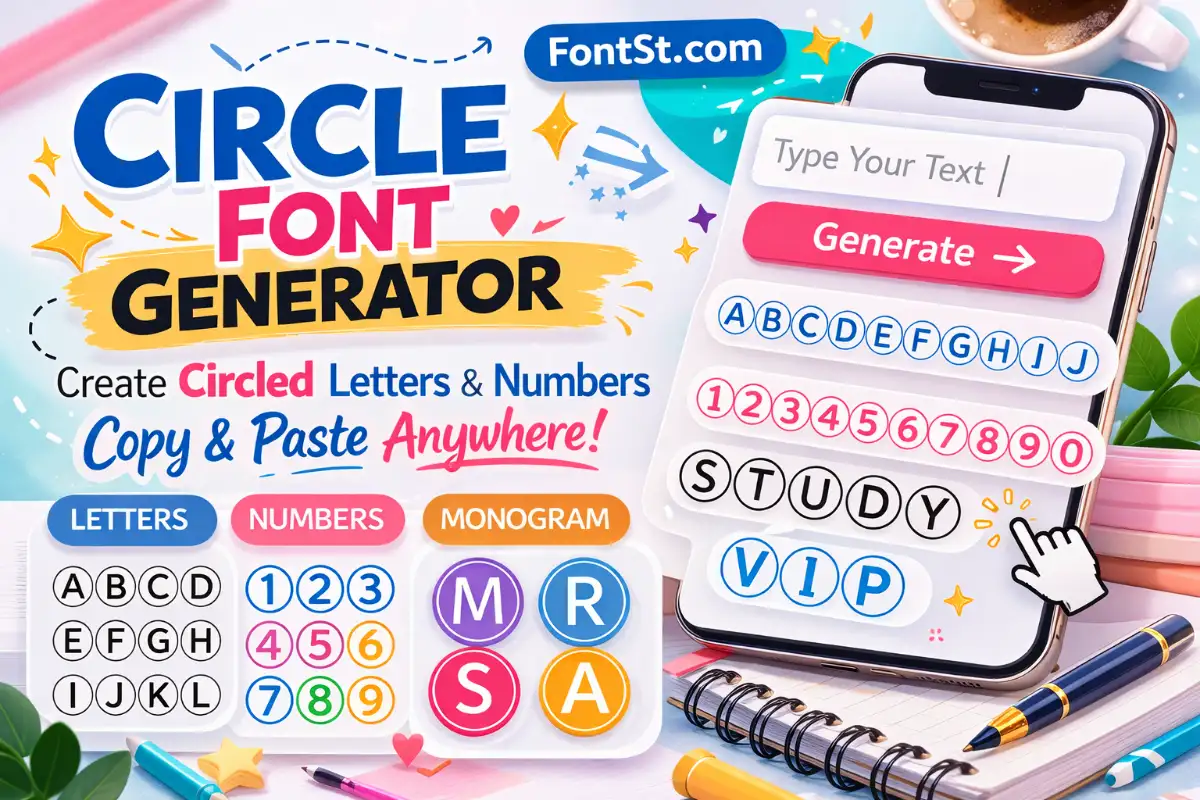
Strikethrough in WhatsApp is a quick way to cross out words when you want to show an edit, a change of plan, or a playful “not this” moment. This page gives you two easy options: use the built-in WhatsApp shortcut (~text~) or generate crossout text with FontSt and Copy & Paste it instantly.

💚 WhatsApp Strikethrough Generator 💚

Strikethrough on WhatsApp (What It Is and Why People Use It)

Strikethrough on WhatsApp means putting a line through text to show it’s cancelled, corrected, or no longer true. It’s useful because you can keep your message readable while still showing what changed.

People commonly use it for:

  • Editing a sentence without deleting the original word
  • Joking in chats (“I’m not ready”)
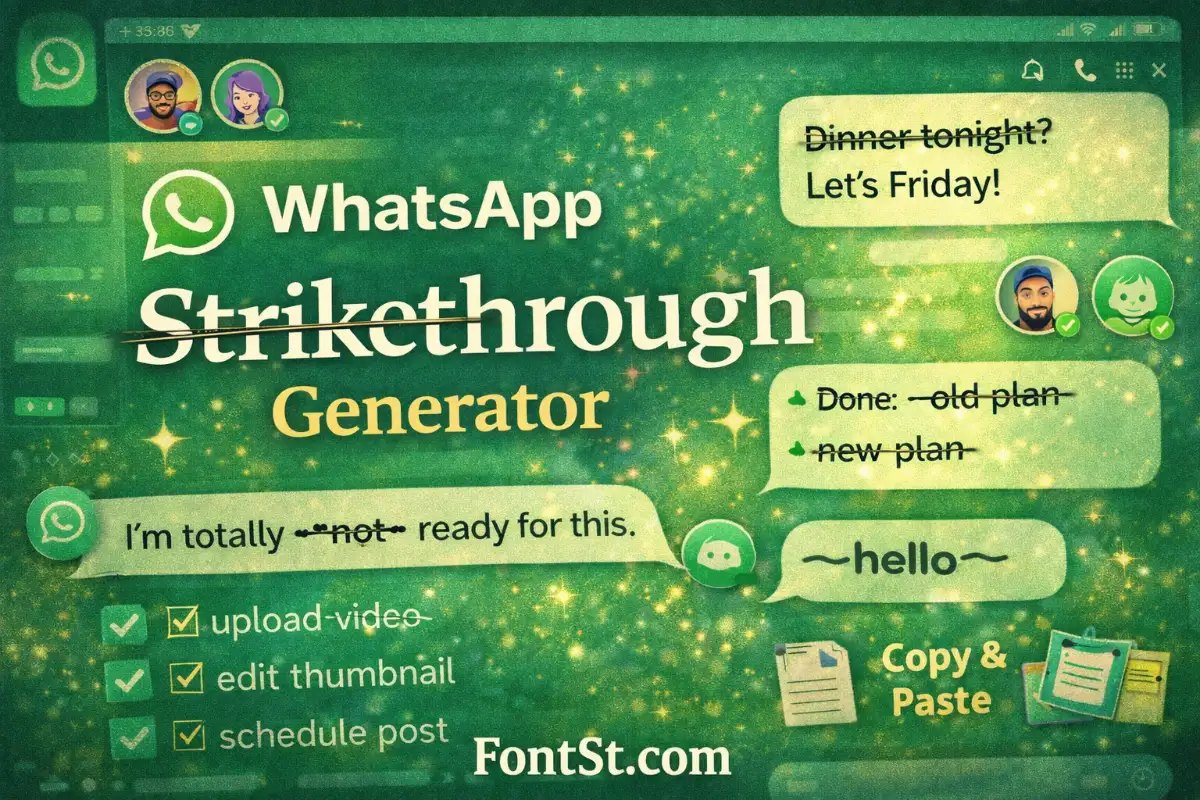
  • Crossed-out plans (“Dinner tonight tomorrow”)
  • To-do checkoffs in group chats
  • “Before vs after” updates

The best part is that WhatsApp supports strikethrough natively, so you don’t need any extra app. But a generator can still help when you want faster Copy & Paste text, templates, or consistent styling.

Whatsapp text tricks ➜ Cursive Typography Generator

Cursive Typography
Cursive Typography

WhatsApp Line Through Text (The ~Shortcut~ That Works)

If you want WhatsApp line through text, WhatsApp uses a simple shortcut: put a tilde ~ at the start and end of the text.

  • Format: ~text~
  • Example: ~hello~ → ~hello~

Make it work every time

  • Don’t add spaces right inside the symbols:
    • ~hello~
    • ⚠️ ~ hello ~ (can fail or look inconsistent)
  • Make sure you include the closing ~
  • Keep it short if you want it to stay easy to read

When to use the generator instead

The WhatsApp shortcut is perfect when you’re typing live. Use the FontSt generator above when you want:

  • Copy & Paste results in one click
  • Pre-made crossout templates for common replies
  • A quick way to cross out multiple phrases without retyping

More fancy font styles for Whatsapp ➜ Emoji Font Generator

How to Strikethrough in WhatsApp Web (Desktop and Browser)

How to strikethrough in WhatsApp Web is the same as mobile, because it’s built into WhatsApp formatting. You just type the tilde shortcut in the message box.

Steps for WhatsApp Web

  1. Open WhatsApp Web in your browser.
  2. Click into a chat.
  3. Type ~ then your words, then ~ again.
  4. Press Enter to send.

Example:
Type: This is ~wrong~ right
Send: This is ~wrong~ right

Common issues on WhatsApp Web

  • If you pasted text from another app, the tildes might not be standard. Retype them directly.
  • If nothing happens, check for missing closing ~ or extra spaces inside the symbols.

More fancy font styles for Whatsapp ➜ Emoji Font Generator

Emoji and fonts copy paste

How to Strike Words in WhatsApp Mobile (Android and iPhone)

If you’re searching how to strike words in WhatsApp mobile, the shortcut is still ~text~. It works in:

  • WhatsApp chats
  • Group chats
  • Replies and forwarded messages
  • Status text (when typing captions)

Steps on mobile

  1. Open WhatsApp and select a chat.
  2. Type your message.
  3. Add ~ before and after the word or phrase you want crossed out.
  4. Send.

Examples you can copy:

  • I meant ~Tuesday~ Wednesday
  • Plan is ~cancelled~ rescheduled
  • ~Done~ Still working on it

A clean style tip

Cross out only the part you are changing. If you cross out a full paragraph, it becomes hard to read, especially on smaller screens.


How to Remove Strikethrough in WhatsApp (Fix It Fast)

How to remove strikethrough in WhatsApp is easy because strikethrough is triggered by the ~ symbols. Remove the symbols, and the text becomes normal.

Remove strikethrough before sending

  • Delete the leading ~ and trailing ~ around the word or phrase.
  • Example: change ~hello~ back to hello.

Remove strikethrough after sending

WhatsApp doesn’t let you “reformat” a message after it’s sent, but you can:

  • Edit the message (if your version supports editing) and remove the tildes
  • Or send a corrected message without the crossout

If it keeps turning into strikethrough accidentally

This usually happens when you use ~ for decoration or emojis. If you don’t want formatting:

  • Don’t put matching ~ on both sides of text
  • Use a different symbol for decoration, like - or

Cool font styles for Discord ➜ Bubble Font Generator

Bubble Font
Bubble Font

Tricks for WhatsApp Text (Bold, Italic, Monospace, and More)

Want more tricks for WhatsApp text? WhatsApp has several built-in formatting options that work on both mobile and web.

Basic WhatsApp text formatting

  • Bold: *text*text
  • Italic: _text_text
  • Strikethrough: ~text~ → ~text~
  • Monospace: `text`text

Clean formatting tips

  • Avoid spaces right inside the symbols (example: * hello * may not work).
  • Don’t mix too many formats in one word unless you test it first.
  • Keep messages readable: formatting should highlight, not distract.

Use formatting for real chat scenarios

  • Emphasize a key time: “Meet at 7 PM.”
  • Show a correction: “It’s ~Friday~ Saturday.”
  • Make code or commands clearer: “Type !help.”

More cross out styles ➜ Strikethrough Text Generator

Strikethrough Text Generator

FAQ – Whatsapp Cross Out Text

Crossed out text WhatsApp
To create crossed out text in WhatsApp, wrap your words with tildes: ~text~. You can also generate crossout text above and Copy & Paste it into WhatsApp.

WhatsApp text formatting tricks
WhatsApp supports quick formatting with symbols: *bold*, _italic_, ~strikethrough~, and `monospace`. These work in both WhatsApp Mobile and WhatsApp Web.

WhatsApp message font tricks
WhatsApp does not let you install custom fonts inside the app, but you can style your messages using built-in formatting or Unicode-style text that you Copy & Paste from a generator.

Different font style for WhatsApp
For different font styles in WhatsApp, use a text generator (like FontSt) to create copy-paste text styles. Keep in mind that some styles may look slightly different across devices, so test in a chat before using them in important messages.

More cool cross out styles for Discord ➜ Discord Strikethrough


Leave a Comment