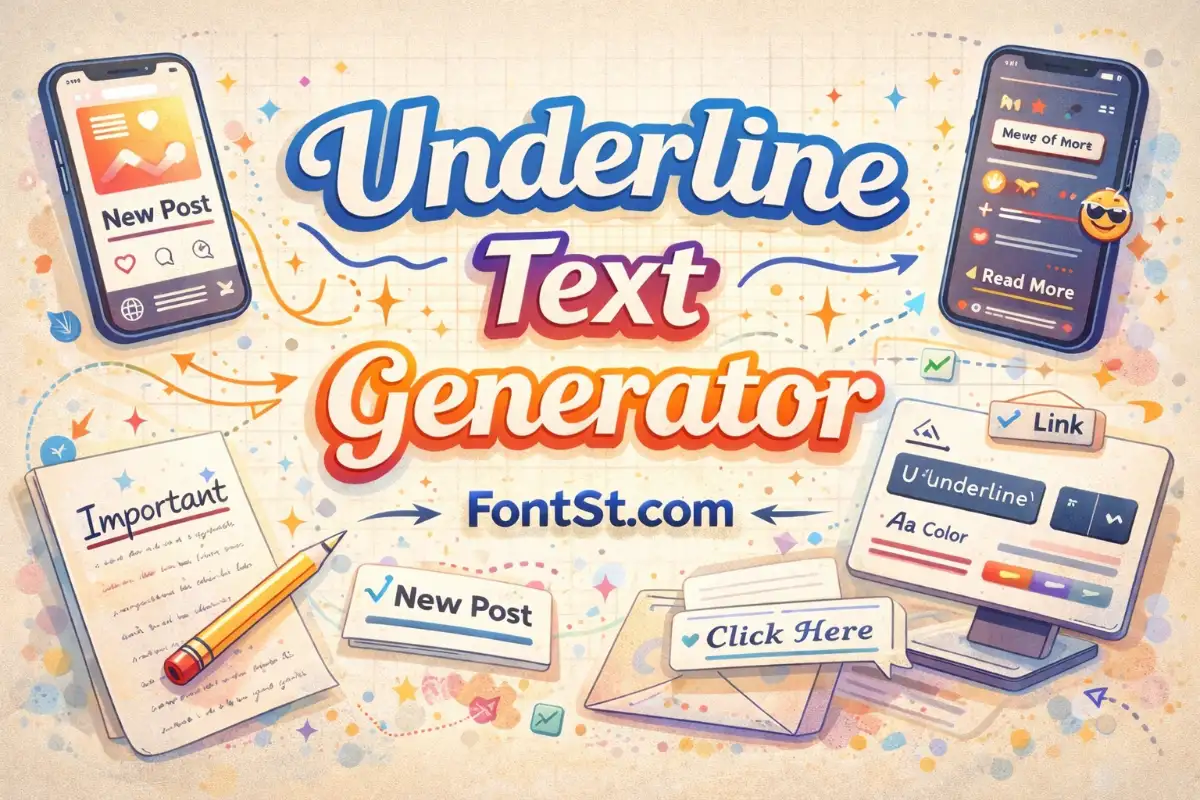
Use FontSt.com’s Underline Text Generator to turn plain words into clean underline styles you can Copy & Paste anywhere. Type your text, pick an underline look, then paste it into Instagram bios, TikTok captions, WhatsApp messages, words, or notes in seconds.
Underline text is one of the easiest ways to add emphasis—perfect for headings, bios, captions, notes, and clean “link-style” aesthetics. Use this tool to create underline copy and paste text instantly, then paste it anywhere.
Underline words simply means text with a line beneath it to show emphasis—like highlighting a keyword, title, or important phrase. People use underlines to:
Make a title stand out in a caption
Emphasize a word in a bio or status
Create a neat “link-like” aesthetic
Separate sections in a note or profile
Tip: Underlining is most effective when you underline only 1–3 key words, not entire paragraphs.
In Flutter, underline is typically done with TextStyle and TextDecoration.underline. This is the “real” UI underline (not copy/paste characters), and it’s best for apps because it renders cleanly on all devices.
Example concept (simple idea):
Set decoration: TextDecoration.underline
Optionally control thickness, style, and color if needed
Tip: If you’re underlining only one word inside a sentence, use TextSpan with RichText.
Bold underline styles work best for short titles like “New Post” or “Important”. If your underline looks too thick on mobile, switch to a simpler underline style and keep the phrase under 3–5 words.
Simple Underline Text For Clean Copy & Paste
Simple underline text is the most compatible across apps. Use it for bios, captions, and chat messages when you want emphasis without breaking readability.
Double Underline Text For Extra Emphasis
Double underlines are great for strong highlights (like “SALE” or “ANNOUNCEMENT”). Keep it short—double lines can look crowded on long sentences.
Straight Underline Text That Looks Like A Real Line
Straight underline styles look closest to “real” formatting and are ideal for link-like text. If your platform bends or shifts the line, try a different underline option in the generator.
Calligraphy Underline Fonts With Elegant Vibes
Calligraphy-style underlines feel like hand-drawn strokes, perfect for aesthetic captions and romantic notes. Use one underline per line for a clean, premium look.
React Native Text Underline With TextDecorationLine
In React Native, the standard way is textDecorationLine: "underline" in your text style. Use this for UI underlines (buttons/links) instead of copy-paste underlines.
Text Decoration Flutter Underline In TextStyle
In Flutter, underline is typically done with TextStyle(decoration: TextDecoration.underline). This is best for apps because it stays consistent across devices and fonts.
Underline Letters For Names And Usernames
Underlining letters can make names stand out, but it’s easiest to read when you underline only a keyword or name (not every word). Test your result in your target app before posting.
Underline My Text Quickly Without Installing Fonts
To underline your text fast, type it in the generator, choose a style, then copy and paste. If one style doesn’t render well on your phone, pick a simpler underline option.