Superscript and subscript characters are perfect for math, chemistry, footnotes, exponents, and clean “small number” styling. Use FontSt’s generator to create superscript copy and paste text instantly—then paste it into posts, notes, docs, and design tools.
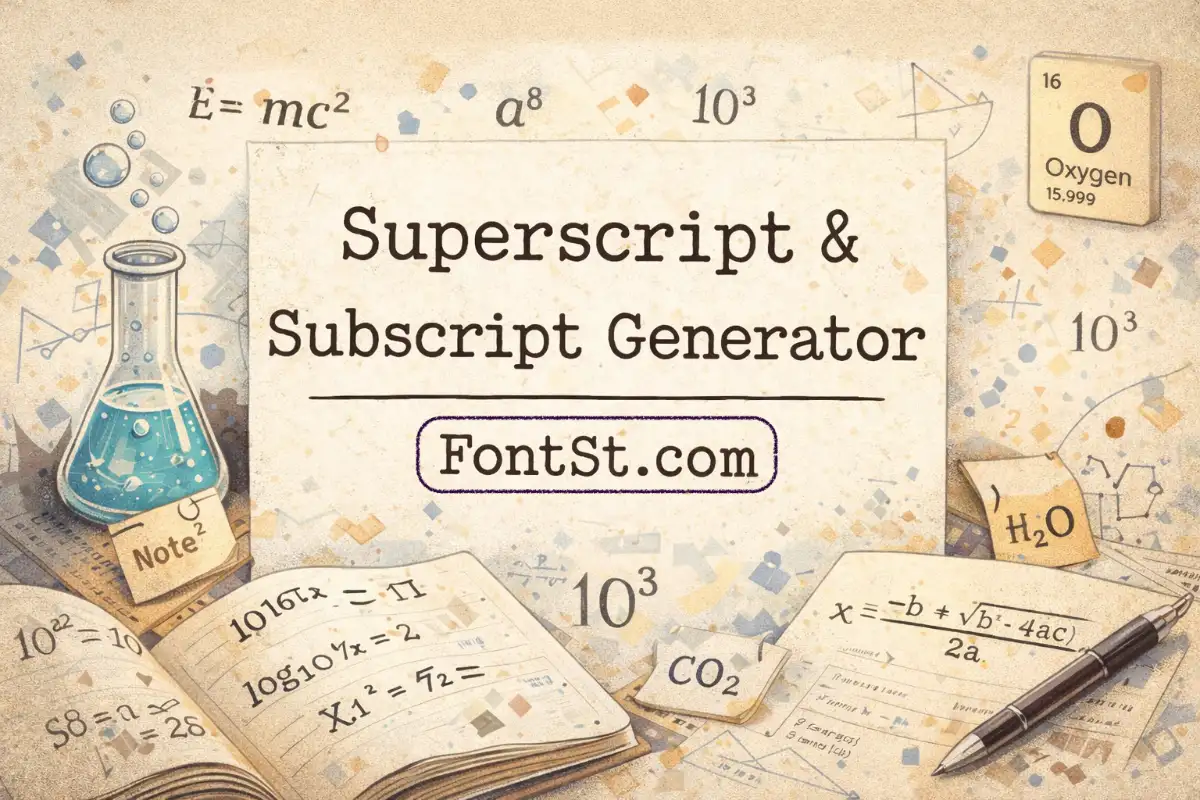
Superscript is small numbers & text placed above the normal text line (like exponents: x², 10³). Subscript is small numbers & text placed below the normal line (like chemistry: H₂O, CO₂).
Compatibility tip: If a platform doesn’t display a character correctly, switch to a simpler format (like x^2 for exponent) or use the platform’s built-in formatting tools.
How To Make Subscript And Superscript Keyboard Shortcuts ?
If you often type formulas, exponents, or chemical symbols, keyboard shortcuts can be faster than copy & paste. Below are the most practical ways to create superscript and subscript using common apps.
Microsoft Word (Windows)
Superscript:Ctrl + Shift + =
Subscript:Ctrl + = Tip: Select text first, then press the shortcut to toggle on/off.
Many apps support superscript/subscript through formatting menus, but shortcuts vary. If the app doesn’t support real formatting, use the Superscript & Subscript Generator and copy/paste the characters instead.
Quick Tip For Social Apps (Instagram, WhatsApp, TikTok)
Most social apps don’t provide true superscript/subscript formatting shortcuts. For those, the easiest method is:
Type normal text → convert with the generator → Copy & Paste
FAQ – Superscript Font Styles & Exponent Generator
Subscript Keyboard
On many devices, there isn’t a universal “subscript key” that works everywhere. The most reliable way is to copy & paste subscript characters (like ₂) or use the formatting options inside apps that support it (Word/Google Docs).
Superscript Figma
Figma supports text formatting, but true superscript depends on your font and styling choices. If you need consistent superscript in UI designs, use Figma’s text features or a font that includes proper superscript glyphs—copy/paste is best for quick labels and mock text.
Affinity Designer Subscript
Affinity Designer can format text with baseline shift or typography features depending on the font. For design work, built-in formatting is more controllable than pasted characters (especially if you need perfect alignment and export consistency).
Superscript Website
For websites, the clean method is HTML tags like sup and sub (and CSS for styling). Copy/paste superscript works for quick content, but proper markup is better for accessibility and consistent rendering.
Subscript And Superscript In Google Forms
Google Forms has limited text formatting. In many cases, copy/paste superscript/subscript characters works for labels or questions—but rendering can vary by device. If it doesn’t display well, use x^2 or H2O as a fallback.
Subscript Letter Generator
If you need subscript letters (not just numbers), note that Unicode support varies—some letters may not exist as true subscript glyphs. Use the generator to test the exact letters you need, and if a character isn’t supported, consider alternatives like parentheses or plain text formatting.